
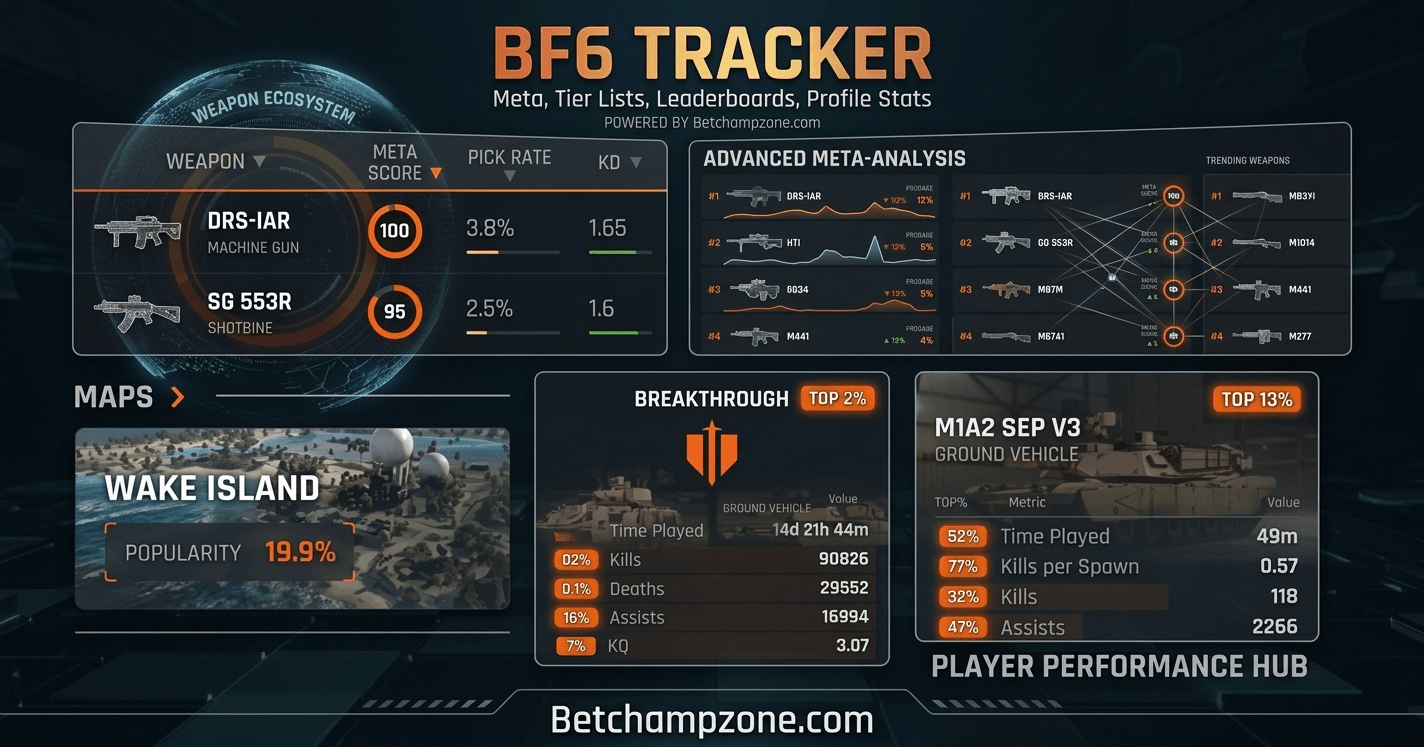
If you’ve been searching for a BF6 tracker, you’re probably trying to answer a simple question: how good are you actually doing in Battlefield 6? Maybe you want to see your kill/death ratio, find out which weapon you’re most deadly with, or compare your numbers against a squadmate who won’t stop bragging. This guide explains what a BF6 tracker actually is, how these tools pull your data, what you can expect to see, and how to avoid the setup mistakes that leave people staring at an empty profile page.
What Is a BF6 Tracker?
A BF6 tracker is a stats-tracking tool, either official or third-party, that reads your Battlefield 6 match history and turns it into readable numbers: kills, deaths, accuracy, win rate, time played, and more. Some trackers are simple web pages where you type in your username and get a snapshot of your career stats. Others go much further, offering session-by-session breakdowns, weapon-specific data, class performance, vehicle stats, and global leaderboards you can compare yourself against.
Battlefield 6 does not have a built-in stats screen inside the game itself, which is exactly why external trackers exist. EA provides an official web-based stats page, and separately, community sites like Tracker Network’s Battlefield 6 Tracker have built more detailed tools on top of the same underlying match data.
How BF6 Trackers Work
Every BF6 tracker pulls its numbers from the same place: EA’s game servers, which log every match you play. When you search for a player on a tracker, the tool queries that player’s public match history and reformats it into charts, tables, and leaderboard rankings.
This is why account linking and privacy settings matter so much. If a tracker can’t retrieve your data, it’s almost always a permissions issue rather than a bug in the tracker itself. The tool can only display what EA’s servers make visible to it.
Most trackers support lookups across the platforms Battlefield 6 is available on, including PC via EA app or Steam, PlayStation, and Xbox. You typically search using your EA ID (also called your Origin ID or EA account name) rather than your platform gamertag, since that’s the identifier tied to your actual match history.
EA’s Official Page vs Third-Party BF6 Trackers
EA’s own player stats page, found on the official Battlefield 6 site, gives you the headline numbers: kill/death ratio, accuracy, total matches, XP, assists, kills, and revives, along with your most-played class and mode. It’s fast, official, and enough for a casual check-in, and it even generates a shareable summary image.
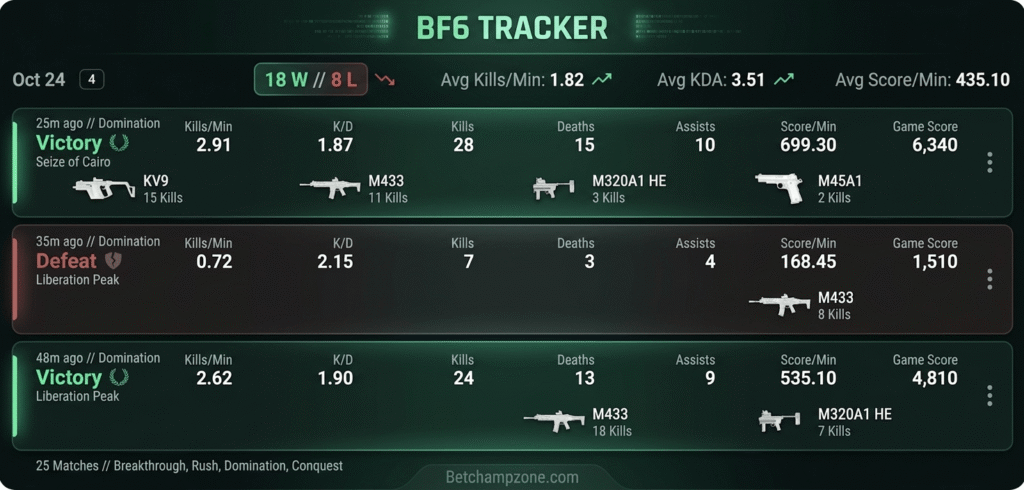
Third-party trackers exist because many players want more than a summary. A dedicated BF6 tracker typically adds a session viewer that separates your stats match by match, detailed breakdowns by weapon and gadget, per-map and per-vehicle performance, and global or regional leaderboards so you can see how you stack up against other players worldwide, not just your own history.
Neither option is objectively “better.” If you just want a quick number check, the official page is the simplest route. If you’re trying to identify a weak spot in your gameplay, like a weapon you should stop using or a map where your win rate tanks, a third-party tracker’s granular data is more useful.
What Stats You Can Actually Check
Career-level stats generally include total kills, deaths, K/D ratio, win rate, accuracy, headshot percentage, matches played, and longest killstreak. Beyond that, most full-featured trackers break performance down by individual weapon (showing kills, accuracy, and headshots per gun), by class (Assault, Engineer, Support, Recon), by vehicle type, and by map.
Session tracking is one of the more genuinely useful features. Instead of only seeing your all-time average, you can look at how a specific play session went, which is far more actionable if you’re trying to figure out whether a loadout change actually improved your performance or if you just had a lucky run.
Setting Up Your Profile for Accurate Tracking
The most common frustration people run into with a BF6 tracker is searching for their name and getting nothing back, or getting a profile that looks incomplete. This almost always comes down to two in-game settings rather than a problem with the tracker itself.
First, check that gameplay data sharing is turned on in your Battlefield 6 settings. If this is disabled, third-party trackers have no data to pull from, even though EA’s own systems are still logging your matches. Second, make sure your profile visibility isn’t set to private, since a private profile blocks external tools from reading your stats even when data sharing is enabled. Once both settings are correct, enter your EA ID exactly as it appears in-game, since even small typos or extra spaces will return no results.
One more thing worth knowing: if your session history looks unusually “merged,” where several distinct gaming sessions appear as one long block, it’s typically because the tracker only detects a new session when it notices a gap in activity. Keeping a tracker’s profile page open in a browser tab, or running a desktop overlay app while you play, tends to produce cleaner, more separated session data.
Common Mistakes to Avoid
Searching with your platform display name instead of your EA ID is the single most common error, since consoles and PC don’t always show the same name that’s tied to your EA account. Another frequent issue is checking stats immediately after a match; there can be a short delay before new match data finishes syncing to EA’s servers, so a stats page that looks unchanged right after a game usually just needs a few minutes.
It’s also worth remembering that a tracker’s global leaderboard reflects only players who have used that particular site, not the entire Battlefield 6 player base. A leaderboard rank on one tracker isn’t a universal ranking across every player who owns the game.
Limitations Worth Knowing
Third-party trackers depend entirely on EA continuing to expose match data through the channels these tools use. If EA changes its data-sharing policies or API access, trackers can temporarily lose accuracy or functionality until they adapt. It’s also worth being cautious with any tracker requesting more account access than a simple username lookup requires; a legitimate stats tracker should only need your EA ID, not your login credentials.
Frequently Asked Questions
Do I need to create an account to use a BF6 tracker?
Most trackers let you look up any public profile without creating an account. You typically only need an account if you want to save favorites, customize a dashboard, or use certain overlay features.
Why can’t a tracker find my Battlefield 6 profile?
This is almost always caused by data sharing being turned off or your profile visibility being set to private in your in-game settings, or by searching with the wrong ID.
Is a desktop overlay necessary to track stats?
No. Overlays are optional and mainly useful for viewing stats in-game without tabbing out, or for reducing merged session data.
Are BF6 trackers free to use?
The core stat-lookup and leaderboard features on the trackers referenced here are free. Some offer optional paid tiers or apps with extra features.
Can I see another player’s stats, not just my own?
Yes, as long as that player’s profile visibility is set to public, you can look up their stats the same way you’d check your own.
Final Thoughts
A BF6 tracker turns raw match data into something you can actually learn from, whether that’s confirming your favorite weapon is working or spotting a map where you consistently underperform. Start with EA’s official page if you just want a quick check-in, and move to a full-featured tracker once you want session breakdowns, weapon-level detail, or leaderboard comparisons. Getting your privacy and data-sharing settings right the first time saves the most common headache people run into.
