

If you searched for “tgarchiveconsole set up,” you’re likely trying to archive a Telegram group chat into something you can browse, search, and keep permanently, without relying on Telegram’s own servers. This guide explains exactly what the tool is, what it’s officially called, and how the setup process actually works, based on its official documentation.
What Is TGArchiveConsole, Really?
One thing worth clearing up first: “TGArchiveConsole” isn’t the tool’s real name. The project people are searching for is called tg-archive, a command-line tool built by developer Kailash Nadh and hosted on GitHub. The “console” label comes from the fact that it runs entirely from a terminal, with no graphical interface. That naming mix-up matters because searching for the wrong exact name can lead you to outdated or inaccurate third-party guides instead of the source.
tg-archive exports Telegram group chats into a static website, similar in spirit to an old-fashioned mailing list archive. It periodically syncs messages from a group into a local SQLite database, then builds a browsable HTML site from that data. Because everything is generated as static files, the finished archive can be hosted anywhere: a personal server, GitHub Pages, or any basic web host.
It’s important to know upfront that the tool’s maintainer has stated he is no longer actively developing it, though he still reviews and merges clearly documented pull requests. That doesn’t mean it’s broken. It means you shouldn’t expect frequent updates, and you should read any error messages carefully since fixes may come from community contributions rather than official releases.
What TGArchiveConsole Set Up Actually Involves
The setup has three real stages: getting API access from Telegram, running the sync, and building the site. There’s no separate “installer wizard.” It’s a Python package you run from the command line.
Step 1: Get Telegram API Credentials
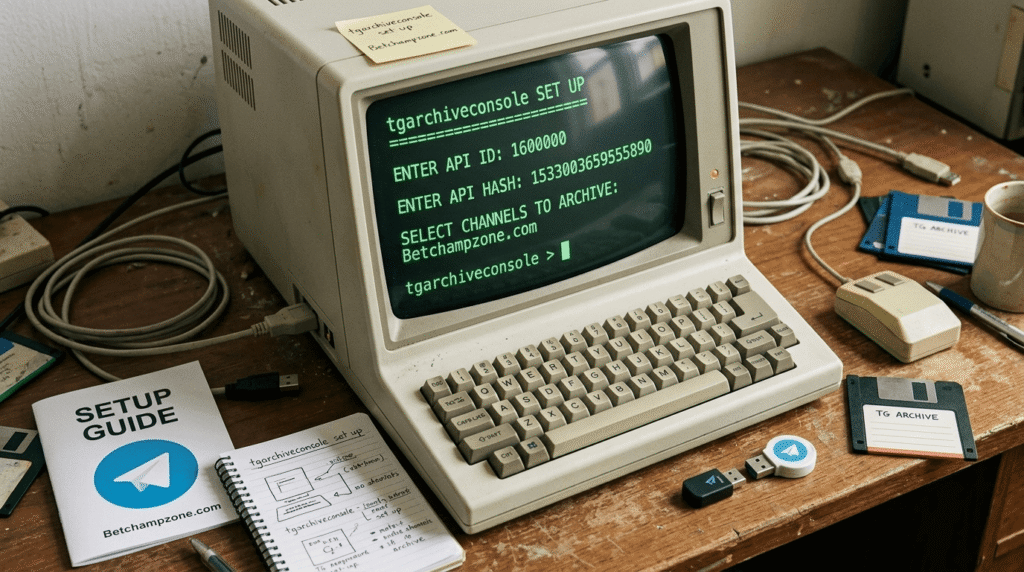
You’ll need an API ID and API hash from Telegram’s own developer page. A common misconception in other guides is that this requires a bot token. It doesn’t. tg-archive authenticates as a normal Telegram user account, not through the Bot API, because it needs to read full group history the way a regular member would see it. If the credentials page shows a bare “ERROR” message, that’s usually caused by a VPN or proxy interfering with the request, and switching browsers or disconnecting from the VPN typically resolves it.
Step 2: Install the Package
The tool is distributed as a Python package. The documented install method uses uv pip install tg-archive, and the maintainer notes it has been tested with Python 3.13.2. If you’re not already using uv, a standard pip install tg-archive in a Python environment will also pull the package, though matching a recent Python version reduces the chance of dependency conflicts.
Step 3: Create a New Archive Site
Running tg-archive --new --path=mysite generates a new project folder. Inside it you’ll find a config.yaml file, which is where you set the group you want to archive, your API credentials, and site-level settings like the title of your archive. This is the file to edit before doing anything else.
Step 4: Sync Your Messages
From inside that folder, tg-archive --sync connects to Telegram and pulls messages into a local data.sqlite file. The first time you run this, it will ask for your phone number, then a login code Telegram sends to your app. Once you confirm it, a session.session file is created in the folder. This file holds your live authorization, so treat it like a password: never upload it to a public repository or share it with anyone.
Syncing can be interrupted safely. If you press Ctrl+C partway through, you can resume later without losing progress, since the tool only downloads messages it hasn’t already stored.
Step 5: Build the Static Site
Once syncing finishes, tg-archive --build renders everything in data.sqlite into a finished website inside a site folder. That folder contains plain HTML, CSS, and media files you can upload to any hosting provider.
Key Features Worth Knowing About
The generated archive isn’t a bare list of messages. It downloads and displays user avatars, embeds shared photos, documents, and files, and renders poll results directly on the page. Stickers are swapped for emoji equivalents since sticker files aren’t rendered natively. The site is organized with year, month, and day indexes, so a specific date in a long chat history is easy to find, and replies link back to the original message they responded to. There’s also a built-in RSS/Atom feed, useful if people want to follow new messages without revisiting the site manually.
Customizing the Archive
The visual side of the site comes from a single Jinja-based HTML template file, generated inside your project folder, along with a static directory for CSS and other assets. Editing that template lets you change colors, layout, and branding without touching the underlying sync or build logic.
Automating Ongoing Archiving
For a group that’s still active, a one-time export becomes outdated fast. The documentation specifically recommends setting up a cron job (or an equivalent scheduled task on Windows) to run the sync and build commands on a regular interval, keeping the published archive current automatically.
Common Setup Mistakes to Avoid
Two issues come up more than others. First, using a bot token instead of user-account API credentials will not work correctly, since bots don’t have the same visibility into full group history. Second, downloading large amounts of media or long message backlogs in one continuous run can trigger Telegram’s API rate limits; watching the debug output during a long sync helps you catch this before it stalls the process entirely.
Frequently Asked Questions
Is TGArchiveConsole the tool’s actual name?
No. The tool is officially called tg-archive. TGArchiveConsole appears to be a search term people use based on its command-line nature rather than its real project name.
Do I need a Telegram bot to use it?
No. It authenticates using a normal user account’s API credentials, not a bot token, so it can access full group history.
Is the tool still actively maintained?
The developer has stated he’s no longer actively developing new features but continues to review and merge well-documented pull requests from contributors.
Can I stop and resume a sync later?
Yes. Stopping with Ctrl+C is safe, and running the sync command again picks up where it left off.
Where does the finished archive get hosted?
Anywhere that serves static files, since the build step produces plain HTML, CSS, and media assets rather than a dynamic web app.
Conclusion
A correct TGArchiveConsole (tg-archive) set up comes down to four things: valid user-account API credentials, a properly edited config.yaml, a completed sync that authenticates through your Telegram app, and a build step that turns the local database into a publishable site. Once that pipeline is working, scheduling it with a cron job turns a one-time export into a living archive that stays current on its own.
